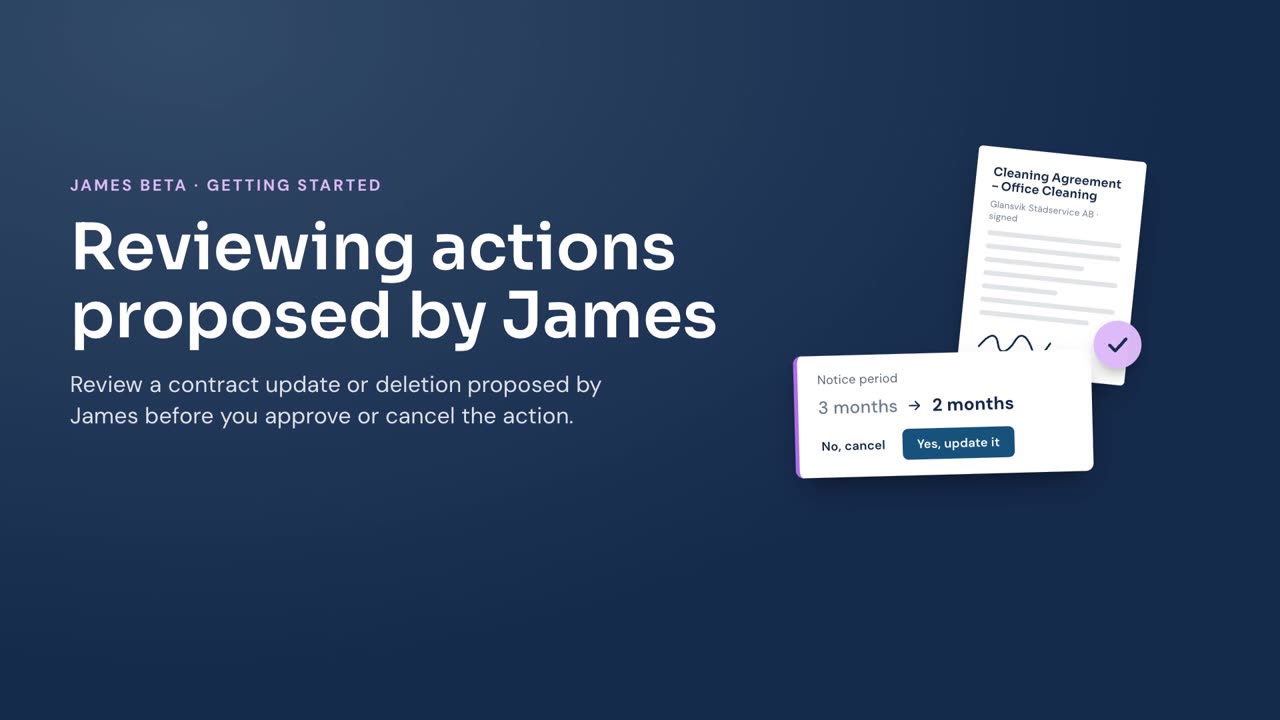
Review the contract and proposed changes before you approve an action from James.
Before you begin
Ask James to update or delete a contract. For help starting a conversation, see Asking James for help.
Steps
- Review the confirmation card in James’s reply. It identifies the contract and describes the proposed action.
- For an update, compare each displayed value before and after the change.
- Select Yes, update it to apply an update, or No, cancel to leave the contract unchanged.
- For a deletion, review the contract named on the card.
- Select Yes, delete it to delete the contract, or No, cancel to keep it.
Result
James shows the outcome in the conversation. An approved update shows Contract updated. An approved deletion shows Contract deleted.
If James shows The action was interrupted. Check whether it completed. or I couldn’t confirm the outcome. Please check whether the action went through before trying again., check the contract before repeating the action. See Viewing a contract or Editing contract details.