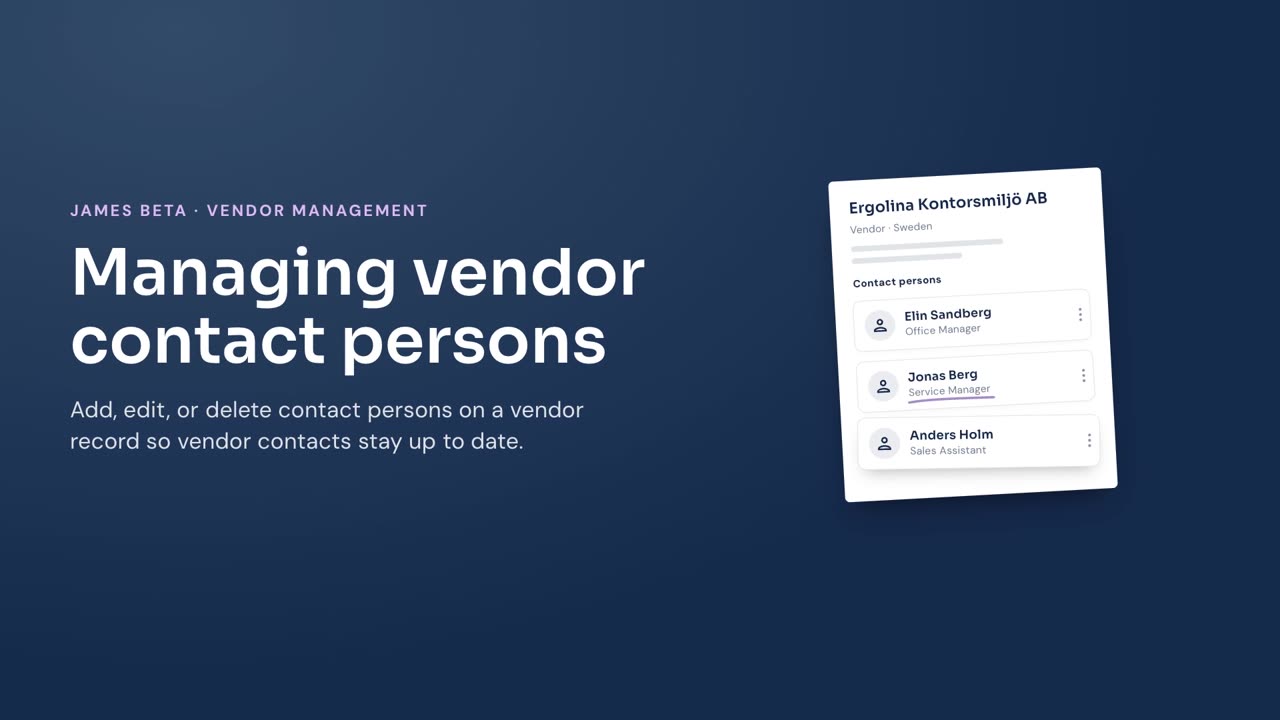
Add, edit, or delete the individual contact persons listed on a vendor record.
Add a contact person
- Go to Vendors and select the vendor.
- In Contact persons, select Add contact person.
- Complete the contact person’s details. First name and Last name are required.
- Select Add contact person.
James adds the person to the vendor’s contact-person list.
Edit a contact person
- Go to Vendors and select the vendor.
- In Contact persons, select the actions menu next to the contact person.
- Select Edit.
- Update the details.
- Select Save changes.
James updates the contact person on the vendor record.
Delete a contact person
- Go to Vendors and select the vendor.
- In Contact persons, select the actions menu next to the contact person.
- Select Delete.
- In Delete contact person, select Delete contact person.
James removes the contact person from the vendor record.