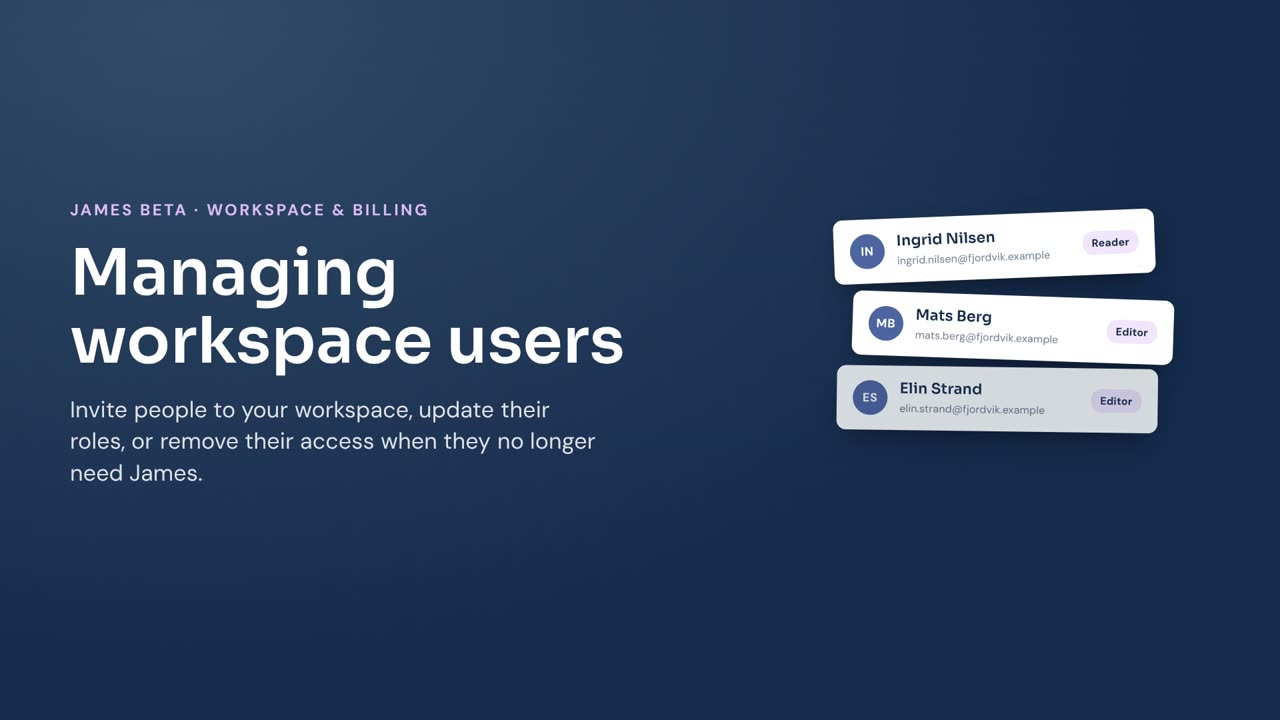
Manage the people who can access your workspace and the role each person has.
Before you begin
You must have permission to manage people in the workspace. If James does not give you access to Users, ask an Owner for help.
Invite several people
- Select your name at the bottom of the left menu, then select Settings.
- Select Users.
- Select Invite people.
- Enter the email addresses in Email addresses. Separate each address with a space, comma, or semicolon.
- Select a role in Role for all, or set a different role for an individual person.
- Select Send invitations.
James emails each invited person. They set their name when they join the workspace.
Add one person
- Select your name at the bottom of the left menu, then select Settings.
- Select Users.
- Select More invite options, then select Add one person.
- Enter the person’s Email address, First name, and Last name.
- Select their Role.
- Select Send invitation.
The person joins the workspace after entering the invitation code from the email.
Change a person’s role
- Select your name at the bottom of the left menu, then select Settings.
- Select Users.
- Find the person, then select their actions menu and select Edit.
- Select the new Role.
- Select Save.
Remove a person
- Select your name at the bottom of the left menu, then select Settings.
- Select Users.
- Find the person, then select their actions menu and select Remove.
- Confirm the removal.
The person loses access to this workspace. They keep their James identity, so you can invite them back later.